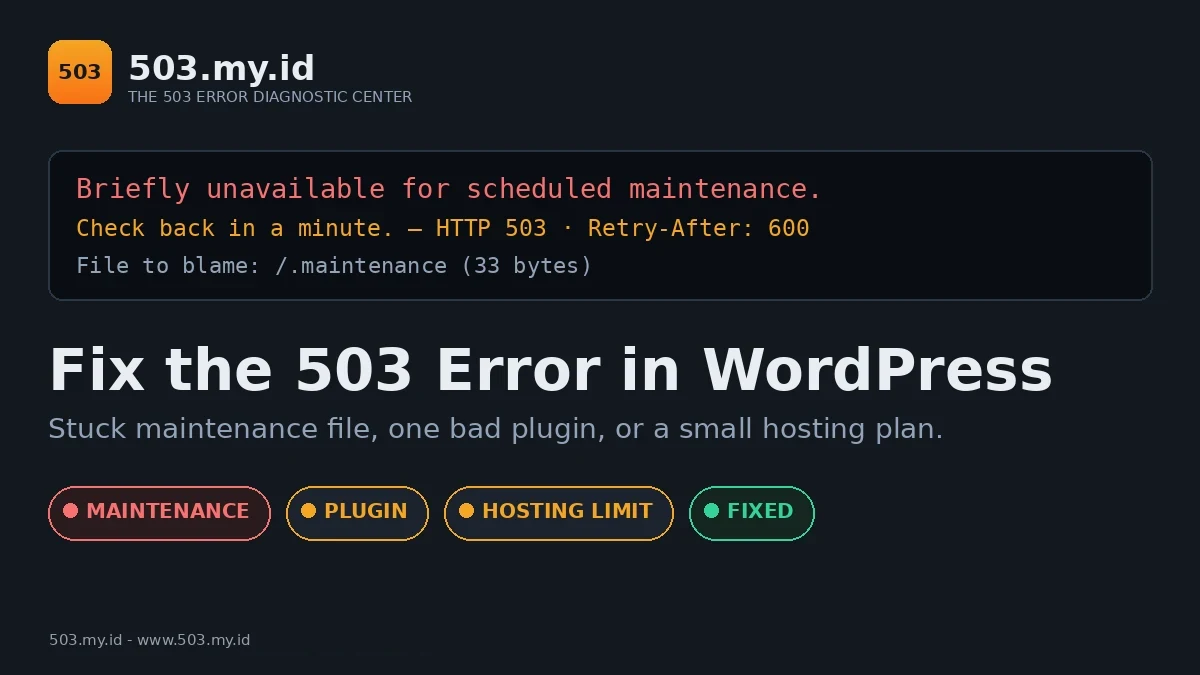
Forced, captured, and fixed in our lab on 16 November 2026: a stranded .maintenance file and a load plugin that ate the PHP worker pool — WordPress 7.1.4, PHP-FPM 8.4.27, nginx 1.26.3, Apache 2.4.71.
WordPress 503s are usually a stuck maintenance file or one bad plugin.
- Wait 2 minutes — an update may be finishing.
- Via your hosting file manager, check for a
.maintenancefile in the site root and rename it. - Still down? Rename the
pluginsfolder to disable all plugins at once, then restore them one by one.
The Two Messages WordPress Shows
A WordPress 503 wears one of two faces.
The first is the generic server sentence:
503 Service Unavailable
The second is WordPress’s own maintenance page:
Briefly unavailable for scheduled maintenance. Check back in a minute.
We captured that second page in our lab, headers and all.
It arrived with status 503 and a Retry-After: 600 header.
Which face you see already narrows the cause list.
The maintenance wording points at Cause 1 below, almost every time.
The 30-Second Checks
Before changing anything, answer three questions.
One: is the whole site down, or only the front end?
Try /wp-admin/. WordPress answers maintenance mode there too.
Two: did an update run in the last fifteen minutes?
Check your email and the dashboard’s update history when it returns.
Three: is it only you? Run the URL through our 503 Checker.
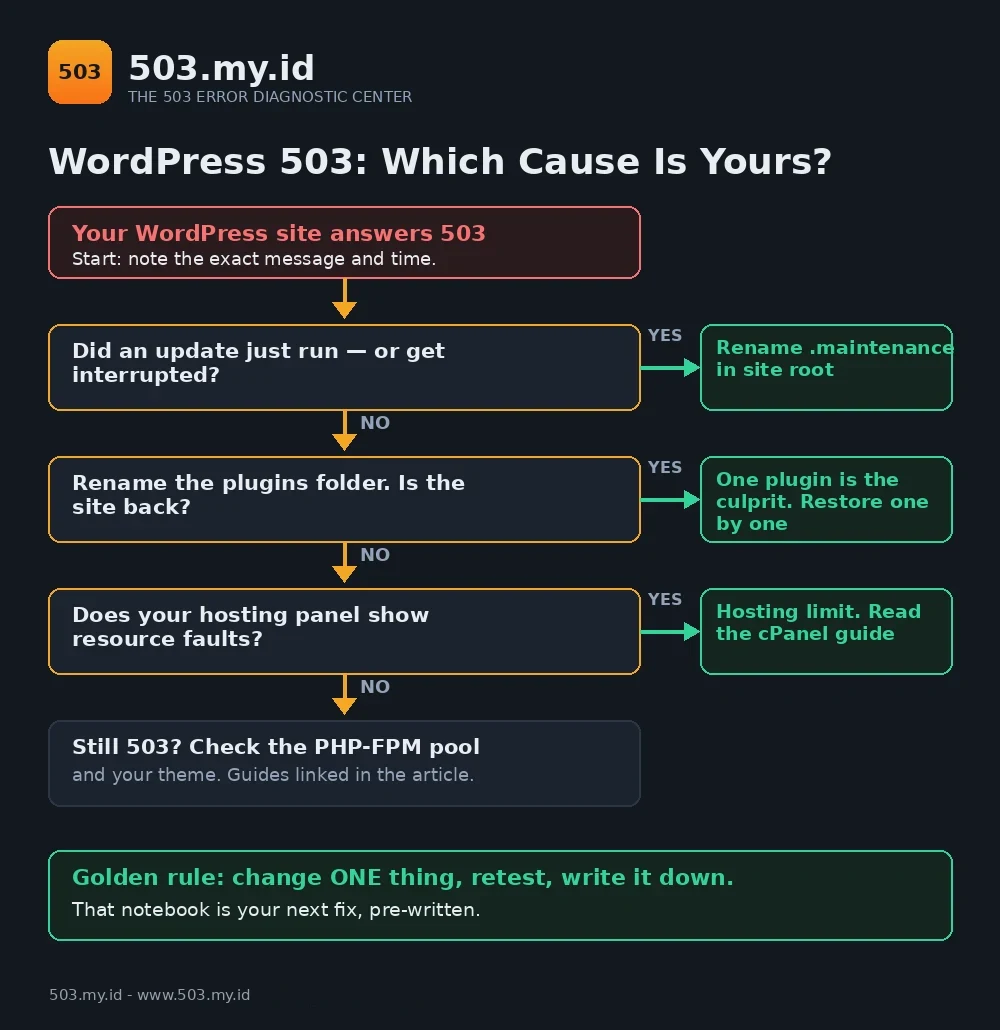
Not sure which branch you are on?
The 503 Decision Tree routes you in five questions.
All of it on one page: the WordPress 503 Emergency Checklist (PDF) — print it and tick the boxes as you go.
Cause 1: Stuck in Maintenance Mode (.maintenance)
Every WordPress update begins by writing one small file.
Its name is .maintenance, and it sits in the site root.
Its whole content is a single timestamp:
<?php $upgrading = 1763332800; ?>While that file exists, WordPress refuses every request with a 503.
A finished update deletes the file. An interrupted one cannot.
The fix:
- Open your hosting file manager (or FTP) at the site root.
- Show hidden files, then find
.maintenance. - Rename it to
.maintenance.off— reversible, unlike deleting. - Reload the site. A healthy site returns 200 immediately.
- Re-run the interrupted update from the dashboard, and let it finish.
One precision most guides skip: the timestamp inside expires.
WordPress stops honouring the file ten minutes after that timestamp.
Still down after ten minutes? Something else is also wrong.
Move to Cause 2 instead of waiting longer.
Cause 2: A Plugin or Theme Is Overloading PHP
A plugin that hangs, loops, or waits on a dead external service holds PHP workers hostage.
Hold enough workers, and every new request queues into a 503.
Our lab version of this bug slept fifteen seconds per page view.
Three workers were gone in seconds; the log said the rest.
The fix:
- In the file manager, open
wp-content. - Rename
pluginstoplugins.off. Every plugin is now inactive. - Reload. If the site returns, the cause is inside that folder.
- Rename it back, then rename single plugin folders, one at a time.
- The rename that brings the 503 back names your culprit.
Do the same with themes if plugins come back clean.
Activate a default theme (Twenty Twenty-Five) and retest.
Never bisect on a live checkout. WooCommerce stores deserve a staging copy.
Cause 3: PHP Memory and Worker Limits on Shared Hosting
Sometimes nothing is broken. The plan is simply small.
Shared hosting caps PHP workers and entry processes per account.
Normal traffic then produces an intermittent, come-and-go 503.
Your panel’s Resource Usage graph shows the ceiling being hit.
Read that graph with the cPanel 503 guide.
On your own server, the same wall is pm.max_children.
That version gets the full treatment in the PHP-FPM 503 guide.
Our Lab Reproduction
Same stack as our pillar tests: WordPress 7.1.4, PHP-FPM 8.4, nginx.
Test 1 — A plugin eats the worker pool
We activated a small lab plugin that sleeps fifteen seconds per page view.
It skips wp-admin and the login page, like a real frontend-only bug.
The pool was cut to three workers (pm.max_children = 3).
A single homepage request then took 15.5 seconds.
Six parallel requests split exactly as the pillar test predicted:
- 3 × 200 at about 15 seconds — one per worker.
- 3 × 504 at 30 seconds — queued past nginx’s timeout.
The login page, which the plugin never touches, still suffered.
It answered 200 — after 27.2 seconds of pure queue.
No worker was free to even show the login form.
The FPM log confirmed the cause in one line:
[16-Nov-2026 13:30:10] WARNING: [pool lab] server reached pm.max_children setting (3), consider raising itDeactivating the plugin and restoring ten workers: homepage back to 0.44 seconds.
Test 2 — The stranded maintenance file
The stranded state itself is reproduced in our pillar session.
Same stack, same day: file present, 503 everywhere, gone when removed.
See the pillar’s lab evidence for the full capture.
What we could not do is catch a real update in the act.
Three attempts — polling, process-freezing, a spin watcher under disk load.
WP-CLI updates from local cache finished in about two seconds.
The file never lived long enough to observe, let alone freeze.
Real strandings come from dashboard updates killed mid-copy.
A hosting timeout or a closed browser gives the file time to stay.
What Did Not Work
Our first load plugin crashed the entire lab.
A tooling bug mangled one variable while we wrote the file.
Every page, frontend and admin, answered 500 with a TypeError.
Not a 503 at all — and no dashboard left to fix it with.
Recovery took a file manager and a folder rename, nothing else.
Lesson: a broken plugin usually shows 500, and your exit is the filesystem.
Second failure: killing an update mid-flight deleted the plugin.
Our watcher shot the process after the old version was removed.
The plugin folder was simply gone; only a reinstall brought it back.
That is why the fix in Cause 1 starts with renaming, never deleting.
And why an interrupted update ends with re-running that update.
Prevent the Next WordPress 503
Update one thing at a time, with time to watch it finish.
Keep a staging copy for anything that touches checkout or login.
Back up before updates, and keep file-manager access tested.
The full routine lives in How to Prevent 503 Errors.
FAQ
Why is wp-admin working but my site shows 503?
Usually a partial overload: enough workers remain for one admin page.
Or a cache serves the admin while the frontend queues.
Is deleting .maintenance safe?
Yes, once the update it belonged to is finished or abandoned.
Rename first if you are unsure; the effect is identical and reversible.
How do I find which plugin caused it?
Disable all plugins by renaming the folder, then restore one by one.
The rename that brings back the 503 names the culprit.
My 503 comes and goes — why?
Intermittent 503s mean a limit, not a file: workers or plan resources.
See Cause 3, and check the panel graph at the failing minutes.
Sources and date: Lab reproductions run 16 November 2026 on WordPress 7.1.4, PHP-FPM 8.4.27, nginx 1.26.3, Apache 2.4.71.
Maintenance-mode behaviour and the ten-minute timestamp follow WordPress core (wp-includes/load.php). Definitions follow RFC 9110.
Leave a Reply