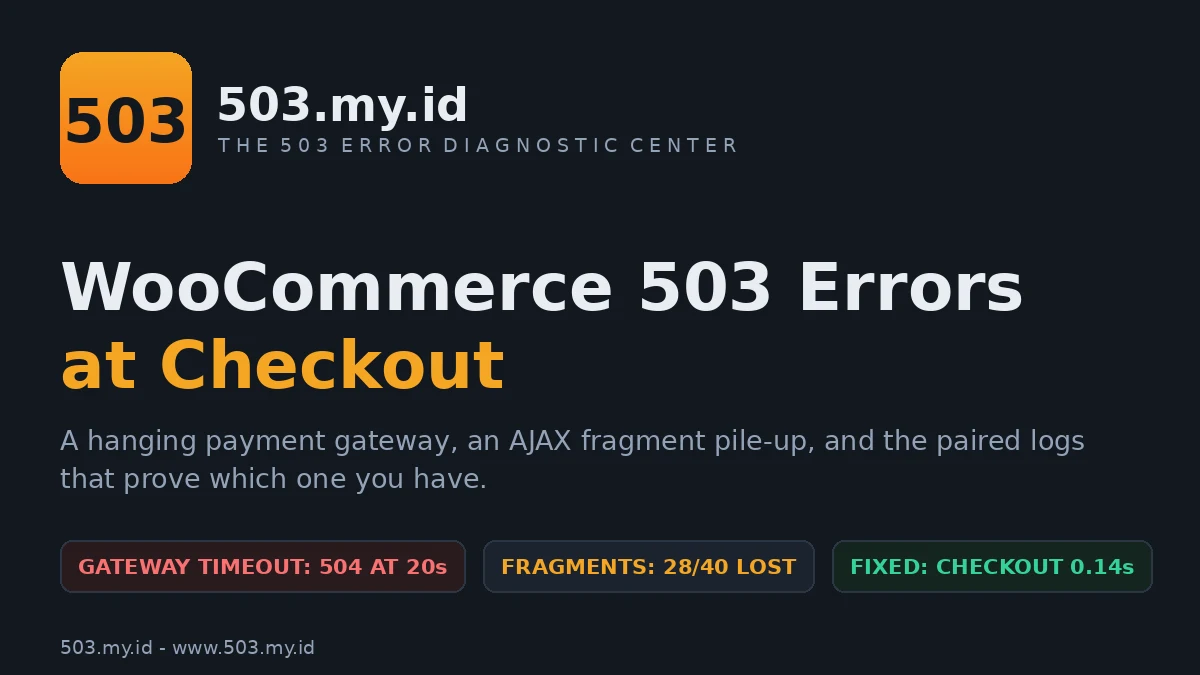
Our lab store ran WordPress 7.1.4 with WooCommerce 11.3.0 on PHP-FPM 8.4.27, nginx 1.26.3, Apache 2.4.71 and MariaDB 11.8.6 — on 16 November 2026 we broke its checkout, then fixed it.
A store 503 during checkout is almost always load or one extension, not WooCommerce core.
- Check whether the 503 hits the whole store or only cart/checkout/AJAX actions.
- Look at WooCommerce → Status → Logs for a fatal or timeout at that minute.
- Disable payment/shipping extensions one at a time in a staging copy — never experiment on the live checkout.
503 Only at Checkout or on admin-ajax.php
A WordPress 503 usually takes the whole site down together.
A WooCommerce 503 is sneakier: it picks the money pages.
The shop loads. The product pages load. The homepage loads.
Then checkout spins, times out, or answers 503.
Or the cart widget never refreshes, because admin-ajax.php is drowning.
That split is your first diagnostic gift.
Whatever kills only checkout or AJAX lives in the store layer.
Whatever kills everything lives in the hosting layer.
Our 503 Decision Tree asks the same question first.
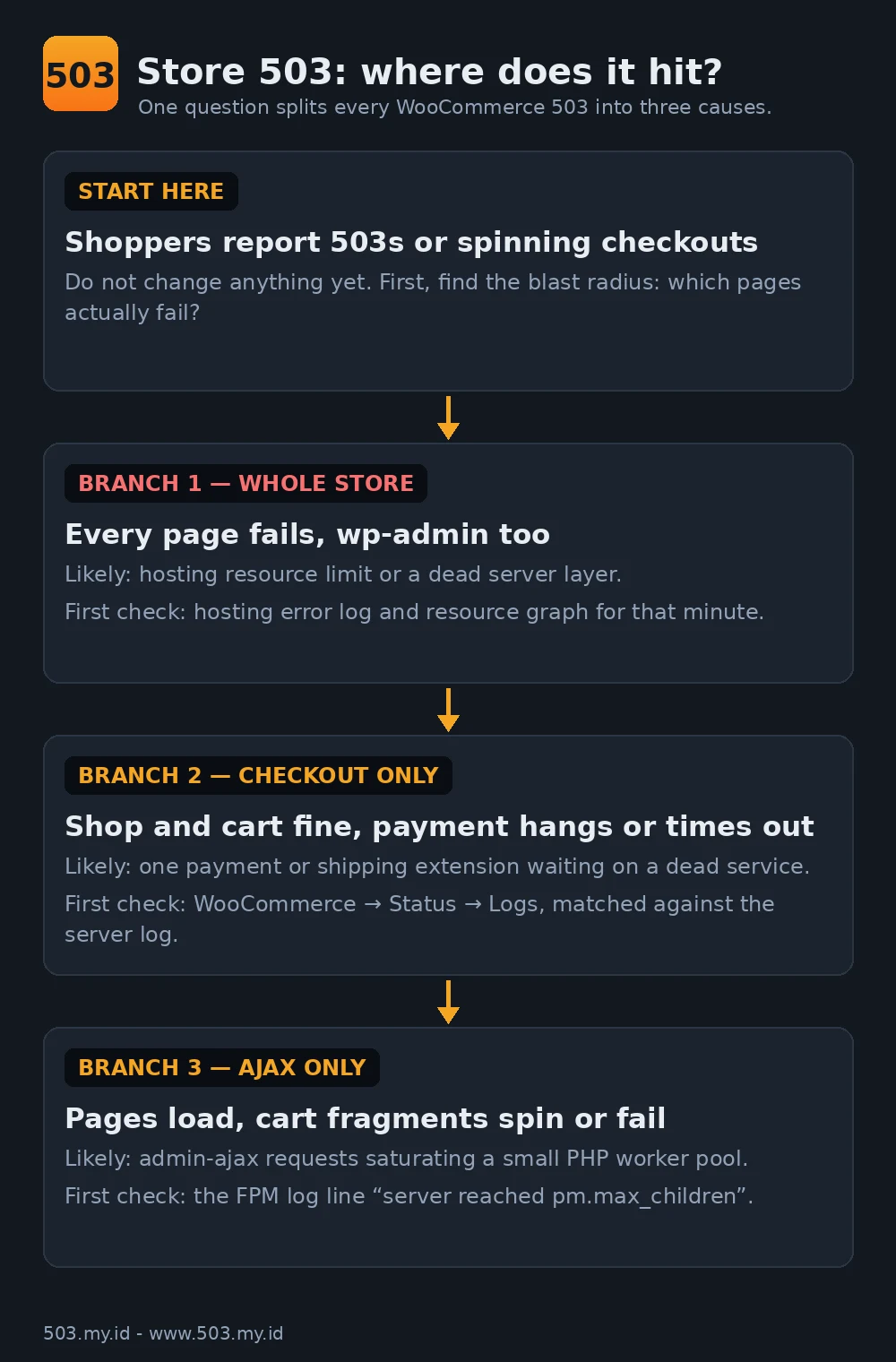
Whole-store failures follow the plain WordPress path instead.
Start with our WordPress 503 guide, then return here.
Cause 1: Payment Gateway Extension Timing Out
A gateway extension answers the shopper by calling somebody else first.
It asks a payment API, a fraud service, a shipping rate table.
When that service hangs, your checkout hangs with it.
The PHP worker sits occupied, waiting on a dead upstream.
Enough waiting workers, and checkout requests queue into timeouts.
The shopper sees a gateway timeout or a 503.
Meanwhile the order often sits in a half-finished state.
The fix:
- Note the exact minute a checkout failed.
- Open WooCommerce → Status → Logs for that minute.
- Match the gateway’s log lines against your server error log.
- Disable that one extension in a staging copy first.
- Run a test checkout. Fast again? You found it.
- Report the paired logs to the extension’s developer.
Never debug this on the live checkout during trading hours.
A staging copy takes the risk; the live store keeps selling.
Our lab reproduction below is exactly this failure, timed.
Cause 2: AJAX and Cart Fragments Overloading Shared Hosting
Every WooCommerce page load fires a background request.
It goes to admin-ajax.php asking for refreshed cart fragments.
That request boots all of WordPress and WooCommerce, every time.
One request is cheap. A sale crowd is not.
Each fragment request holds a PHP worker while it runs.
Slow plugins hooked into fragments make each hold longer.
On shared hosting, the worker pool is deliberately tiny.
When every worker is held, new requests queue, then fail.
Pages served from cache still look fine.
Only the dynamic parts — cart, checkout, account — fall over.
That is why this failure hides from casual checks.
The pool mechanics are the same as any PHP-FPM limit.
See PHP-FPM 503: when the pool is full.
On cPanel plans the same ceiling wears different names.
See 503 errors on cPanel shared hosting.
Cause 3: Cron, Webhooks, and Scheduled Sales Spiking Together
Sales events concentrate every load a store owns.
Shoppers arrive together, refreshing fragments on every page.
Scheduled sale prices flip at the same minute.
WP-Cron wakes up and runs everything that was waiting.
Webhooks fire per order, each one an outbound request.
Stock syncs, email queues, and reports pile on top.
Each load alone is survivable. Together they share one pool.
Our two lab tests isolate the two halves of this pile-up.
A hanging extension holds workers; a fragment surge queues behind them.
Combined, they are the standard sale-day 503.
The defence is rehearsal, not hope: see the checklist below.
The broader routine lives in How to Prevent 503 Errors.
Read WooCommerce Logs and Hosting Logs Together
One log tells you what WooCommerce felt.
The other tells you what the server did.
The truth sits where their timestamps overlap.
WooCommerce → Status → Logs holds gateway and fatal-error logs.
Each gateway writes under its own source name.
Your hosting error log holds the server’s verdict per request.
Timeouts, worker limits, and proxy errors land there.
Line the two up by minute, not by gut feeling.
A gateway line saying “started” with no “finished” is evidence.
A server line at the same minute names the consequence.
Our 503 Checker confirms what shoppers actually received.
Keep both excerpts when you contact any support desk.
Paired logs end arguments that screenshots cannot.
Our Lab Reproduction
Lab store: WordPress 7.1.4, WooCommerce 11.3.0, PHP-FPM 8.4.
Two sample products, flat-rate shipping, cash on delivery enabled.
The lab checkout page uses the classic shortcode checkout.
Baseline first: a scripted COD checkout completed in 0.20 seconds.
Order 15 was created, paid, and confirmed normally.
Test 1 — A gateway that sleeps thirty seconds
We wrote a small lab gateway extension for this test.
Inside process_payment it logs a start line, then sleeps.
Thirty seconds of sleep, imitating a dead payment API.
The nginx front for this test waited twenty seconds.
The shopper’s checkout answered 504 after 20.02 seconds.
Now the paired logs, same event, two sides:
2026-11-16T15:34:43+00:00 INFO process_payment START order 16 - sleeping 30s
2026/11/16 15:35:03 [error] upstream timed out (110: Connection timed out)
    while reading response header from upstream — POST /?wc-ajax=checkout
2026-11-16T15:34:43 + 30s → 15:35:13 INFO process_payment END order 16
The WooCommerce log proves the gateway started at 15:34:43.
The nginx log proves the shopper was cut off at 15:35:03.
The gateway itself finished ten seconds after the timeout.
Order 16 quietly reached status “processing” in the background.
The shopper saw failure; the store recorded a sale.
That mismatch is how duplicate orders are born.
The fix, tested: deactivate the one extension.
The identical checkout then succeeded in 0.14 seconds.
Order 17 completed normally, confirmation page and all.
Test 2 — Cart fragments against a two-worker pool
Second test: an Apache front over a small FPM pool.
The pool was cut to two workers, backlog of two.
Forty parallel cart-fragment requests fired at admin-ajax.php.
Round one used plain fragments, nothing slowed down.
The FPM log complained, exactly on cue:
[16-Nov-2026 15:35:57] WARNING: [pool lab] server reached pm.max_children setting (2)Yet all forty requests still completed, slowest 1.3 seconds.
A queue absorbs fast requests. Remember that before panicking.
Round two added the real-world ingredient: a slow hook.
A lab must-use plugin held each fragment request three seconds.
It imitates plugins doing blocking calls inside fragment hooks.
Same forty requests, same two workers. The result flipped:
- 12 × 200 — served, slowly.
- 28 × no answer within 20 seconds — the shoppers’ view.
- Apache’s access log recorded literal 503 responses for admin-ajax.
- Apache logged AH01075 proxy dispatch errors behind them.
Through all of it, static files never noticed.
A stylesheet on the same server answered 200 in under 0.05 seconds.
Pages fine, cart dead: the classic fragment failure signature.
The fix, tested: remove the slow hook, restore twelve workers.
The identical surge then passed forty out of forty.
What Did Not Work
Our first gateway run failed before it began.
The extension was registered, but its settings said disabled.
Checkout answered “Invalid payment method” in 0.06 seconds.
Lesson: confirm the gateway appears at checkout before timing anything.
Second: plain fragment load could not break the pool.
Forty fast requests queued politely and finished.
Anyone claiming “fragments kill stores” owes you the slow part.
In real stores, the slow part is a hooked plugin.
Third: WooCommerce’s default block checkout hid our classic gateway.
Block checkout talks to the Store API, not classic gateways.
We switched the lab to the classic shortcode checkout.
Test the checkout your store actually runs.
Before the Next Sale: A Load Checklist
Run this list a week before any scheduled sale.
It is also our linkable Sale-Day Readiness checklist (PDF included).
- Script one full checkout; time it. Know your healthy number.
- Read WooCommerce → Status → Logs for old timeouts.
- List every extension touching checkout, fragments, or webhooks.
- Disable one suspect at a time — in staging, never live.
- Ask your host for your real PHP worker ceiling.
- Fire a parallel fragment surge at staging; watch the FPM log.
- Spread cron jobs away from the sale’s opening minute.
- Decide in advance who watches logs during the sale.
A sale-day 503 also has a search cost.
FAQ
Why does only checkout show 503, not my homepage?
Because checkout is dynamic and your homepage is probably cached.
A hanging gateway or full worker pool only blocks dynamic requests.
Can a payment gateway cause a 503?
Yes. Our lab gateway’s thirty-second sleep produced a checkout timeout.
The WooCommerce log and server log named it within one minute.
Is it safe to disable extensions on a live store?
It is risky during trading hours; use a staging copy.
If the store is already down, disabling one beats staying down.
Why do 503s appear during sales events?
Sales stack every load at once: shoppers, fragments, cron, webhooks.
They all share one small worker pool.
Sources and date: Lab reproductions run 16 November 2026 on WordPress 7.1.4, WooCommerce 11.3.0, PHP-FPM 8.4.27, nginx 1.26.3, Apache 2.4.71, MariaDB 11.8.6.
Checkout timings are scripted curl sessions against the lab store (classic shortcode checkout). Gateway and fragment behaviour follow the WooCommerce and PHP-FPM logs quoted above.
Leave a Reply