

Lab-tested 18 November 2026: Elementor 4.4.1 on WordPress 7.1.4, PHP-FPM 8.4.27. Save failure reproduced and fixed; your host’s surface code depends on its layer.
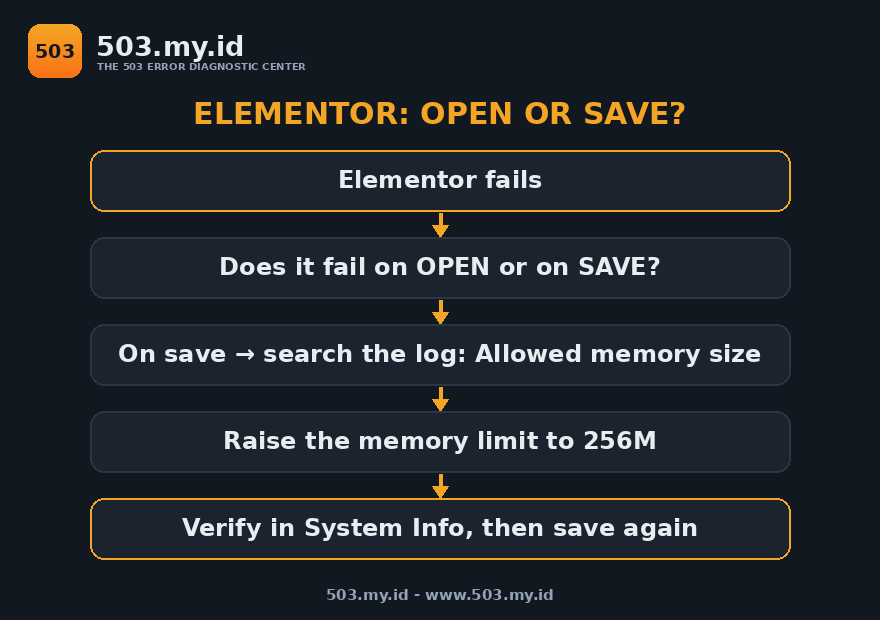
An Elementor 503 is usually a memory wall hit during save — not during editing:
- Check the PHP error log for
Allowed memory size … exhaustedat the minute your save failed. - Raise the PHP memory limit to 256M — Elementor’s own recommended minimum — then save again.
- Confirm the new limit in Elementor → System Info; a setting the host overrides changes nothing.
Two Failures Wearing One Name
“Elementor 503” covers two different accidents.
The editor spins forever, or the canvas opens blank.
Or editing works — until you press Update and it dies.
The second accident is the one our lab could prove.
It also matches most reports: fine all morning, dead on save.
Saving is the heaviest thing Elementor does server-side.
It serialises your whole layout, regenerates CSS, writes both.
Editing mostly ships that cost to your browser instead.
So the diagnostic question is not “why 503?” first.
It is: does it fail while opening, or while saving?
Open-failures point at conflicts and blocked requests.
Save-failures point at limits — and limits leave log lines.
Our Lab: The Editor Survived, the Save Did Not
The lab: WordPress 7.1.4, Elementor 4.4.1, PHP-FPM 8.4.27.
We built a deliberately heavy page: 1,200 heading widgets.
Think of a long sales page assembled over two years.
Then we saved it through Elementor’s own save code.
First surprise: the editor itself is not the hog.
Its page — 1,617,418 bytes of HTML — loaded fine at 48M.
It loaded fine at 32M too, in 0.6 seconds.
Second result: the heavy save peaked at about 90 MB.
At a 256M limit the save completed normally.
At 96M it still completed, near its ceiling.
At 64M it died, and the log wrote the confession:
PHP Fatal error: Allowed memory size of 67108864 bytes exhausted (tried to allocate 2097152 bytes) in /wp-content/plugins/elementor/vendor/jetpack-autoloader/class-php-autoloader.php on line 102At 48M it died the same way, earlier in the autoloader.
Nothing about the page was corrupt or unusual.
It simply needed more memory than the limit allowed.
Your page needs less than 1,200 widgets to hit this.
The threshold is your layout’s weight against your limit.
A 64M limit — still common on cheap shared plans — is close.
The Fix: Raise Memory, Verify It Took
Raise the PHP memory limit to 256M.
That figure is Elementor’s own recommended minimum.
For WordPress, set the constant in wp-config.php:
define( 'WP_MEMORY_LIMIT', '256M' );Place it above the “stop editing” line, then save again.
Our lab’s save, dead at 64M, completed at 256M.
Two warnings from hard experience, ours and the lab’s.
First: the server can cap what wp-config requests.
Pool and panel settings outrank the constant silently.
Verify in Elementor → System Info, not in your editor.
The Memory Limit row there is the value PHP actually has.
Second: raise the FPM or panel value if System Info disagrees.
On cPanel that is PHP Selector; on Hostinger, PHP Configuration.
The Hostinger route is detailed in the Hostinger 503 guide.
Decision, stated plainly: memory first, always, for save failures.
Plugin-conflict hunts are for editors that will not open.
Running both hunts at once wastes the afternoon.
Why Your Host Calls It 503
Honesty about surfaces, because this confuses everyone.
On our nginx lab, the exhausted save died as a PHP fatal.
The admin request returned a 500-class error, not 503.
Your host may show 503 for the identical failure.
Shared hosting wraps accounts in entry and process gates.
A request killed at that gate is answered 503.
We proved that gate behaviour separately, in the nine-causes lab.
Same wall, different uniform — the log line is identical.
So do not reject this diagnosis because your number differs.
Check for the Allowed memory size line first.
It is the fingerprint under both 500 and 503 clothing.
The WordPress-wide version of this hunt is in the WordPress 503 guide.
The Other Limits Elementor Names
Elementor’s system requirements name three more values.
We did not reproduce failures for these in the lab.
They are documented requirements, labelled as such here:
max_input_vars4000 or higher — large saves post many fields.max_execution_time300 — slow saves need room to finish.post_max_size64M — the save payload must fit the request.
Check all three in Elementor → System Info after memory.
If memory is 256M and saves still die, these are next.
Change one at a time and re-save the same page.
Guessing in bulk is how afternoons disappear.
What Did Not Work
Our first save test. It “failed” at every limit, even unlimited.
The test ran without a logged-in user; the save refused permission.
We fixed the test before touching the site — an order worth copying.
Blaming the editor’s weight. It loaded at 32M, repeatedly.
The famous memory hunger lives in the save path, not the canvas.
Trusting wp-config alone. A constant is a request, not a command.
Only System Info tells you the limit PHP is really running.
Expecting the fatal to say 503. Ours said 500 in the admin.
The number is the host’s clothing; the log line is the body.
FAQ
Why does Elementor fail only when I click Update?
Saving is the heaviest server operation Elementor runs.
It serialises the layout and regenerates CSS in one request.
Our heavy save peaked near 90 MB of memory.
How much memory does Elementor actually need?
Elementor recommends 256M as its minimum.
Our lab: heavy saves died at 64M, survived at 96M.
Light pages need less; the wall is your page against your limit.
Where do I see the real memory limit?
Elementor → System Info, the Memory Limit row.
It reports the value PHP enforces, not the one you requested.
Check it after every change, before re-testing.
My host shows 503, not 500. Is this still my problem?
Very likely, yes. Gates answer exhaustion with 503.
The deciding evidence is the Allowed memory size log line.
It appears under both numbers, unchanged.
Will Safe Mode fix a save failure?
No. Safe Mode isolates editor conflicts — an open-failure tool.
Save failures are limits; raise memory and verify instead.
Sources and date: tests run 18 November 2026 on Elementor 4.4.1, WordPress 7.1.4, PHP-FPM 8.4.27 (Debian 13); peaks and fatal lines quoted from those runs.
Recommended limits (256M, max_input_vars 4000, max_execution_time 300, post_max_size 64M) follow Elementor’s published system requirements, checked 18 November 2026.
References
- Elementor — System Requirements (memory limit, max_input_vars, execution time recommendations).
- RFC 9110 §15.6.4 — 503 Service Unavailable (IETF).
- PHP Manual — memory_limit.
- MDN Web Docs — 503 Service Unavailable.
Leave a Reply