Lab-tested 18 November 2026: WordPress 7.1.4, PHP-FPM 8.4.27. The stuck-after-update state was stranded three times and recovered; an unreproduced variant is labelled in the text.
A 503 right after an update is usually one stranded file:
- Look for
.maintenancein your WordPress root. Fresh timestamp? That file is your outage. - Delete it (file manager, FTP, or
wp maintenance-mode deactivate). The site answers on the next request. - Then verify the interrupted plugin — version, active state, files — before doing anything else.
The Symptom, Word for Word
The update spinner stops — and the site never comes back.
Every page, front and admin, shows one sentence:
Briefly unavailable for scheduled maintenance. Check back in a minute.
Behind the page, the status is 503 with Retry-After: 600.
That sentence is WordPress’s maintenance mode talking.
It is not an error message about your update at all.
It means a switch was turned on and never turned off.
Recognising the sentence saves the first panicked hour.
You are not debugging a broken plugin yet.
You are looking for a one-line file in the wrong state.
Why Updates Leave This File Behind
Every WordPress update follows the same choreography.
The upgrader writes a file named .maintenance.
Its entire content is one line — a timestamp:
<?php $upgrading = 1794959872; ?>While that file exists and is fresh, WordPress serves 503.
Then it swaps the old plugin files for the new ones.
Finally it deletes the file and the site returns.
Any death inside the middle step strands the switch.
A closed browser tab can do it. So can a timeout.
A killed process, a crashed tab, a host hiccup — same result.
The update’s fate and the outage are separate questions.
Our lab proved that separation three times, next section.
The Ten-Minute Rule Nobody Tells You
WordPress stops obeying an old .maintenance file.
The cutoff is ten minutes from the timestamp inside it.
We aged a stranded file to eleven minutes in the lab.
The site answered 200 with the file still present.
It was simply too old to be believed anymore.
This explains the classic “it fixed itself” reports.
Many stuck updates heal at the ten-minute mark, untouched.
It also tells you how to read your own case.
Still down after fifteen minutes? Something is refreshing it.
Or your file is fresh and the outage is genuinely stranded.
Check the timestamp before assuming either story.
wp maintenance-mode status reports what WordPress believes.
Our Lab: Three Kills, Three Stranded Switches
The victim: Elementor, updating from 3.25.0 to 4.4.1. Elementor’s other failure mode lives in the Elementor 503 guide.
A big plugin — 1,569 files before, 3,702 after.
We started the update and killed the process mid-flight.
Kill one landed during the download phase.
Nothing was stranded; the update simply never began installing.
Kill two landed the moment the maintenance file appeared.
The switch stranded. Every visitor received the 503 page.
Headers confirmed it: 503, Retry-After: 600, verbatim sentence.
Kill three landed 1.2 seconds after the file appeared.
Same stranded switch. Same 503 for every visitor.
And one result that surprised us, worth printing.
In both stranded kills, the plugin underneath was complete.
All 1,569 old files, intact, still marked active.
The swap on a local disk is a rename, nearly instant.
There is almost no window in which files can tear.
Torn plugins happen on slow or remote filesystems instead.
We could not reproduce one here, and we will not pretend to.
What strands reliably is the switch — that is the outage.
Recovery, Step by Step
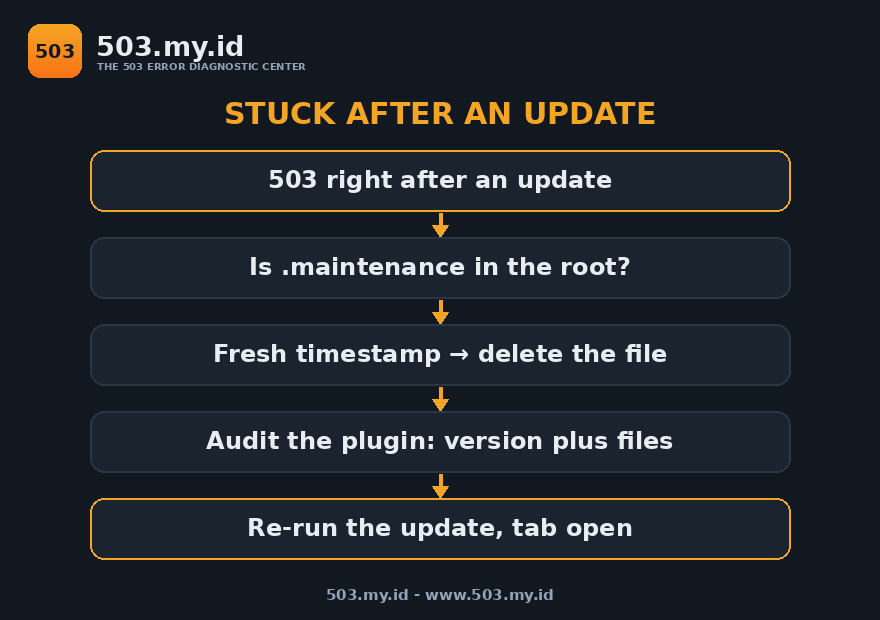
Step 1 — confirm the file. File manager or FTP, WordPress root.
No .maintenance? Your 503 is a different cause entirely.
Try the nine-causes table instead of guessing.
Step 2 — remove the switch. Delete the file, or run:
wp maintenance-mode deactivateOur lab site answered 200 on the very next request.
No restart, no cache purge, no waiting period.
Step 3 — audit the plugin. Check version and active state.
Ours still showed 3.25.0, active, files complete.
If yours shows a version mismatch or missing files, reinstall.
A clean reinstall from a fresh zip is the safe repair:
wp plugin install <plugin> --forceOur recovery ended at 4.4.1 with all 3,702 files present.
Step 4 — finish the update properly. Dashboard → Updates.
Run the interrupted update again, in a tab you keep open.
Watch it complete; the switch should appear and vanish.
Step 5 — if the plugin is broken beyond reinstall: restore.
A pre-update backup is the only repair that always works.
That sentence is the entire argument for making one.
Making the Next Update Boring
Update one plugin at a time, never in a batch.
A stranded switch then names its own culprit.
Keep the tab open until the success message prints.
Most strandings are closed tabs and timed-out browsers.
Update off-peak, so a ten-minute heal costs nothing.
And keep a backup from before the update, always.
These habits belong to the wider routine in the prevention guide.
The WordPress-specific checks live in the WordPress 503 guide.
Our standing rule after this lab: updates are attended work.
Start one, watch it land, then start the next.
What Did Not Work
Our first kill. It fired on a leftover file from an earlier test.
The lab had contaminated its own starting state.
Asserting a clean start is now step zero of every run.
Catching a torn plugin. Three kills, zero torn plugins.
The rename swap on local disk leaves no tearing window.
Articles claiming otherwise owe you their filesystem details.
Waiting as a first response. It works only inside ten minutes.
After that, waiting is just an outage with good manners.
Re-running the update over a stranded switch.
The dashboard is behind the same 503 you are fixing.
Remove the switch first; update second. Order matters.
FAQ
How long does the maintenance message last on its own?
Up to ten minutes from the file’s timestamp.
WordPress ignores older files; we verified at eleven minutes.
Longer than that means a genuinely stranded fresh file.
Is it safe to just delete .maintenance?
Yes — it is a switch, not data.
Deleting it restores the site on the next request.
Then audit the plugin; the file was not the whole story.
My plugin shows the old version after recovery. Broken?
Not necessarily. Our stranded kills left the old version intact.
The update died before replacing anything.
Re-run the update and let it finish this time.
The admin is also showing the maintenance page. Normal?
Yes. Maintenance mode covers front and admin alike.
That is why recovery starts with files or WP-CLI.
Both paths bypass the dashboard entirely.
Can I prevent the file from stranding at all?
You cannot remove the mechanism; WordPress needs it.
You can remove the causes: attended updates, one at a time.
And a backup turns the worst case into a restore.
Sources and date: interruptions and recoveries run 18 November 2026 on WordPress 7.1.4, PHP-FPM 8.4.27, nginx 1.26.3 (Debian 13); test update Elementor 3.25.0 → 4.4.1.
The ten-minute maintenance window and file format follow WordPress core behaviour verified in the same lab runs.
Leave a Reply